Claude: the AI marketing buddy I didn't know I needed
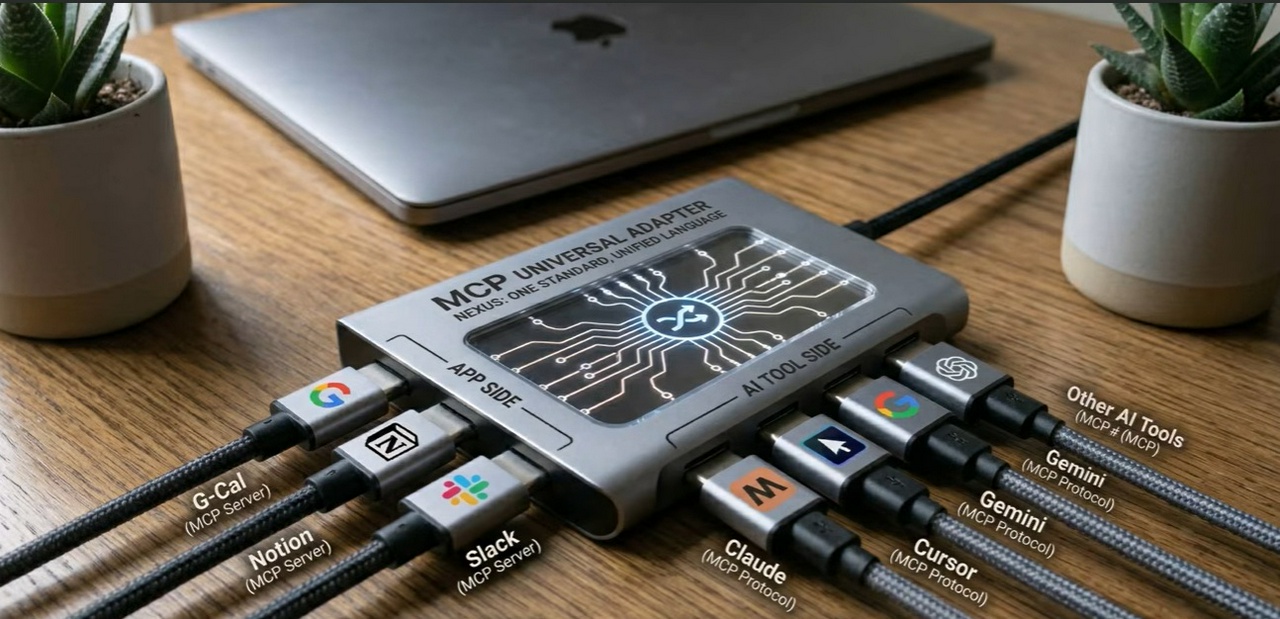
Connect Claude to... everything!
From Google Analytics dashboard to ad spend in Google Ads, from spreadsheets to entire databases — Claude can now plug directly into the tools we already use every day.
No more copy-pasting data, no more juggling five different tabs just to answer one simple question. With connectors like Supermetrics and the MCP protocol, Claude becomes less of a chatbot and more of an actual teammate — one that can see your live data and just... tell you what's going on.
Over the past few months, I've gotten really into Claude! It keeps showing up at the top of AI rankings, and people rave about it — so I decided to actually learn how to use it for marketing work.
I started with the obvious place: Google. Instead of logging into five different dashboards and clicking around manually, I connected Claude directly to my Google data using Supermetrics and something called MCP (Model Context Protocol).
Here's how I set it all up, and how it works day to day.
Step 1: Supermetrics pulls in the Google data
Supermetrics acts like a middleman between my Google accounts and everything else. I don't need to write any code or mess with API keys — I just connect my accounts and it handles the rest.
I mainly use it for three things:
- Google Analytics 4 — website traffic, conversions, user behavior
- Google Ads — campaign performance: spend, clicks, ROAS
- BigQuery / Google Sheets — where all this data gets stored and organized in real time
Step 2: MCP connects Supermetrics to Claude
This is the part that makes it actually useful. MCP is basically a secure “bridge” that lets Claude read my live data without me having to export a single CSV file.
Before this, my routine was: export data → open spreadsheet → upload to Claude → hope it's not outdated by the time I ask my question. Now Claude just sees the data directly, whenever I need it.
Step 3: I just ask Claude questions
This is my favorite part. No pivot tables, no dashboards — I just type what I want to know, like:
“Claude, look at our Google Ads spend from last month and compare it to GA4 conversions. Our ROAS dropped — find the campaigns that are costing the most but converting the least, and tell me where we should cut budget.”
Or:
“Pull last year's seasonal trends from BigQuery for Google Ads and give me a budget forecast for next quarter.”
Claude goes and grabs the actual numbers, crunches them, and hands me back a clear report — insights, charts, and real recommendations. What used to take me hours (sometimes a whole day) now takes a couple of minutes.
How to actually set this up
First, connect Supermetrics to Google:
Log into Supermetrics Hub
Go to “Data Sources”
Pick the tool you want (Google Ads, GA4, etc.)
Click “Connect” and log into Google
Click “Allow” to give Supermetrics read access
Then, connect Claude to Supermetrics:
Open Claude.ai or the Claude Desktop app
Go to Settings → Connectors
Click “Add Custom Connector”
Paste in this URL:
https://mcp.supermetrics.com/Name it “Supermetrics” and click Add
Finally, approve the connection:
Claude will show you an “Authorize” or “Connect” button
It'll send you to Supermetrics' login page
Log in if needed, then click “Approve”
That's it. Once the connector turns green (“Connected”) in Claude's settings, you're live.
THE END RESULT
Now when I ask something like “How many GA4 sessions did we get last week?”, Claude quietly pulls the answer through Supermetrics in the background and gives me a clean number — no exporting, no spreadsheets, no digging around. Just a real conversation with my own data.